While attempting to resolve what I thought was a malformed driver, I removed the Intel Chipset driver from SCCM. Upon attempting to re-import the driver again I was presented with this error (found in the DriverCatalog log).
“Import failed as \\server\share\driverpath\*
is a Reparse Point that SMS does not support via downloads. DriverCatalog 06-03-2013 14:24:23”
It turns out to be a problem when the driver source location is hosted on a Server 2012 platform with data De-duplication enabled. After much googling, I found this post on technet.
"please
be aware that you can run into issues with using server 2012 de-dupe.
ConfigMgr does not currently support re-parse points, so if you attempt
to import a driver
package or something else that has a re-parse point in it, it will fail."
One solution is to delete the files from the package source and re-copy, this will remove the re-parse points from the De-duplication database and allow SCCM to import the driver.
The other is to exclude any directories that are used as replication parents from the data de-dupe schedule. Package source, Driver source and OS installation/updates sources should *not* be de-duped. It's annoying not being able to de-dupe these folders but it's safer than having driver packages suddenly (and randomly) become corrupted.
It's a shame that SCCM 2012 R2 still doesn't support re-parse points as we were enjoying a 71% de-dupe rate. Maybe in the next version Microsoft will fix this problem.
Fingers crossed !
03 October, 2013
16 August, 2013
Office Customisation Tool Adding desktopfolder shortcuts
When adding shortcuts in the Office Customization Tool for the desktop
for Word, Excel, Outlook etc, you will get the follow error message, please
note that if I look at the pre-configured shortcuts for the start
menu, they do not have a Start In folder specified.

So I added the start in folder off: C:\Program files (x86)\Microsoft Office\Office15\
Fine, no problem right? Well by doing so and clicking OK, the OCT tool adds the same string to the Arguments field and if I try delete that and OK it, it comes back when I open it again:

Sure enough, after install when launching the programs with these shortcuts I get error messages starting with:
"Sorry, we couldn't find your file. Is it possible it was moved, renamed or deleted? (C:\Program.doc)"
The solution is quite simple. Delete the arguments string and replace it with a space and the shortcut will function normally.
So I added the start in folder off: C:\Program files (x86)\Microsoft Office\Office15\
Fine, no problem right? Well by doing so and clicking OK, the OCT tool adds the same string to the Arguments field and if I try delete that and OK it, it comes back when I open it again:
Sure enough, after install when launching the programs with these shortcuts I get error messages starting with:
"Sorry, we couldn't find your file. Is it possible it was moved, renamed or deleted? (C:\Program.doc)"
The solution is quite simple. Delete the arguments string and replace it with a space and the shortcut will function normally.


02 August, 2013
Group Policy Preferences: Enabled/Disable settings
Have you ever noticed this:

Yeah I know. Everybody has seen the power options from Group policy preferences. But have another look. You will see that all the options are colored with green.
Yeah I know. Everybody has seen the power options from Group policy preferences. But have another look. You will see that all the options are colored with green.
What this means is that this settings is Active. You can turn on and off this options by using
F5 F6 F7 and F8.
F5 F6 F7 and F8.
- F5 activates all the options you see. Turning every option Green
- F6 activates only the chosen setting. Turning it green (you can use TAB to choose or click it with your mouse)
- F7 Disables only the chosen setting. Turning the color to red/white
- F8 Disables all the settings. Turning every option into red/white
When the color is red/white the setting will not come into the play. In other words,
you disable the option completely.
Here is a picture with all the settings disabled so you can see the difference.

Another interesting thing is that regional settings are red/white by default. Thereby these settings will not be turned on until you use the F5 or F6 key. I wonder how many people that did not know this. It was new to me at least.
Another interesting thing is that regional settings are red/white by default. Thereby these settings will not be turned on until you use the F5 or F6 key. I wonder how many people that did not know this. It was new to me at least.
You can also right click the setting you have made and view the xml to verify that the option is really on.
Update MS Doc: http://technet.microsoft.com/en-us/library/cc754299.aspx
* This post was copied verbatim from an article I found a while back. It was reposted here for my reference.
Update MS Doc: http://technet.microsoft.com/en-us/library/cc754299.aspx
* This post was copied verbatim from an article I found a while back. It was reposted here for my reference.
02 March, 2012
Configuring Wireless Settings from the Command Line or a Script
You can also configure wireless settings using commands in the netsh wlan
context of the Netsh command-line tool, which enables you to create
scripts that connect to different wireless networks (whether encrypted
or not). To list available wireless networks, run the following command.
Before you can connect to a new wireless network, you can load a profile from a file. The following example demonstrates how to create a wireless profile (which is saved as an XML file) from a script or the command line.
To connect to a wireless network quickly, use the netsh wlan connect command and specify a wireless profile name (which must be configured or added previously). The following examples demonstrate different but equivalent syntaxes for connecting to a wireless network with the Contoso1 SSID.
Note that you need to specify the interface name only if you have multiple wireless network adapters—an uncommon situation. You can use the following command to disconnect from all wireless networks.
You can use scripts and profiles to simplify the process of connecting to private wireless networks for your users. Ideally, you should use scripts and profiles to save users from ever needing to type wireless security keys.
You can also use Netsh to allow or block access to wireless networks based on their SSIDs. For example, the following command allows access to a wireless network with the Contoso1 SSID.
Similarly, the following command blocks access to the Fabrikam wireless network.
To block all ad hoc networks, use the Denyall permission, as the following example demonstrates.
To prevent Windows from automatically connecting to wireless networks, run the following command.
You can also use Netsh to define the priority of user profiles (but not Group Policy profiles). Group Policy profiles always have precedence over user profiles. The following example demonstrates how to configure Windows to connect automatically to the wireless network defined by the Contoso profile before connecting to the wireless network defined by the Fabrikam profile.
Netsh has many other commands for configuring wireless networking. For more information, run the following at a command prompt.
Netsh wlan show networks

Interface Name : Wireless Network Connection

There are 2 networks currently visible


SSID 1 : Litware

 Network Type  : Infrastructure

 Authentication  : Open

 Encryption  : None


SSID 1 : Contoso

 Network Type  : Infrastructure

 Authentication  : Open

 Encryption  : WEP
Before you can connect to a wireless network using Netsh, you must have a profile saved for that network. Profiles contain the SSID and security information required to connect to a network. If you have previously connected to a network, the computer will have a profile for that network saved. If a computer has never connected to a wireless network, you need to save a profile before you can use Netsh to connect to it. You can save a profile from one computer to an Extensible Markup Language (XML) file and then distribute the XML file to other computers in your network. To save a profile, run the following command after manually connecting to a network.
Netsh wlan export profile name="SSID"

Interface profile "SSID" is saved in file ".\Wireless Network

Connection-SSID.xml" successfully.
Before you can connect to a new wireless network, you can load a profile from a file. The following example demonstrates how to create a wireless profile (which is saved as an XML file) from a script or the command line.
Netsh wlan add profile filename="C:\profiles\contoso1.xml"

Profile contoso1 is added on interface Wireless Network Connection
To connect to a wireless network quickly, use the netsh wlan connect command and specify a wireless profile name (which must be configured or added previously). The following examples demonstrate different but equivalent syntaxes for connecting to a wireless network with the Contoso1 SSID.
Netsh wlan connect Contoso1

Connection request is received successfully

Netsh wlan connect Contoso1 interface="Wireless Network Connection"

Connection request is received successfully
Note that you need to specify the interface name only if you have multiple wireless network adapters—an uncommon situation. You can use the following command to disconnect from all wireless networks.
Netsh wlan disconnect


Disconnection request is received successfully
You can use scripts and profiles to simplify the process of connecting to private wireless networks for your users. Ideally, you should use scripts and profiles to save users from ever needing to type wireless security keys.
You can also use Netsh to allow or block access to wireless networks based on their SSIDs. For example, the following command allows access to a wireless network with the Contoso1 SSID.
Netsh wlan add filter permission=allow ssid=Contoso networktype=infrastructure
Similarly, the following command blocks access to the Fabrikam wireless network.
Netsh wlan add filter permission=block ssid=Fabrikam networktype=adhoc
To block all ad hoc networks, use the Denyall permission, as the following example demonstrates.
Netsh wlan add filter permission=denyall networktype=adhoc
To prevent Windows from automatically connecting to wireless networks, run the following command.
Netsh wlan set autoconfig enabled=no interface="Wireless Network Connection"
You can also use Netsh to define the priority of user profiles (but not Group Policy profiles). Group Policy profiles always have precedence over user profiles. The following example demonstrates how to configure Windows to connect automatically to the wireless network defined by the Contoso profile before connecting to the wireless network defined by the Fabrikam profile.
Netsh wlan set profileorder name=Contoso interface="Wireless Network Connection"

priority=1

Netsh wlan set profileorder name=Fabrikam interface="Wireless Network Connection"

priority=2
Netsh has many other commands for configuring wireless networking. For more information, run the following at a command prompt.
Netsh wlan help
Note
When troubleshooting problems connecting to wireless networks, open Event Viewer and browse the Applications And Services Logs\Microsoft\Windows\WLAN-AutoConfig event log. You can also use this log to determine the wireless networks to which a client is connected, which might be useful when identifying the source of a security compromise.
Windows Batch Script - Getting Script Location (Directory/Path)
Inside a Windows batch file (.bat or .cmd) you can reference the drive and folder where the batch file is located by:
%~D0
CHDIR %~DP0
The first line causes the script to change to the drive where the script is located.
The second line causes the script to change to the directory where the script is located.
See Call command for further information.
This does not happen if the script name has no spaces in it.
Example script below:
%BATCH_SCRIPT_DRIVE%
CD "%BATCH_SCRIPT_FOLDER_PATHNAME%"
to make the current working drive and directory the same as your scripts.
CHDIR %~DP0
The first line causes the script to change to the drive where the script is located.
The second line causes the script to change to the directory where the script is located.
See Call command for further information.
Windows 7 Bug
Windows 7 has a bug in the handling of %~dp0 and %~f0 which can cause this to fail. When running a .cmd or .bat script and using %~f0 or %~dp0 to resolve the batch script name if the batch script name has spaces (ex: "my script.cmd") and you chdir within the script then further references to %~dp0 will incorrectly resolve to the new cwd instead of the correct batch script location.This does not happen if the script name has no spaces in it.
Example script below:
@REM When this script is named "test.cmd" (no spaces) it works as expected for the value of %~f0

@REM When this script is named "test with spaces.cmd" it does not work

echo "Stage 1:  dp0 == %~dp0"

SET STAGE1=%~dp0


%~d0
cd "%~dp0"
mkdir TestSubFolder
cd TestSubFolder

echo "Stage 2:  dp0 == %~dp0"
echo Should have gotten value %STAGE1%
Work Around
I've filed a bug with Microsoft at https://connect.microsoft.com/PowerShell/feedback/details/617705/windows-shell-bug-with-how-dp0-is-resolved. In the mean time if you make the FIRST statements in your batch as follows you can still use this trick:@REM Must set these first thing due to bug in Windows 7 when batch script filename has spaces in it SET BATCH_SCRIPT_DRIVE=%~d0 SET BATCH_SCRIPT_FOLDER_PATHNAME=%~dp0You could then do
%BATCH_SCRIPT_DRIVE%
CD "%BATCH_SCRIPT_FOLDER_PATHNAME%"
to make the current working drive and directory the same as your scripts.
28 February, 2012
Recovering Windows and Software Keys
** copied verbatim from my good friend Mark Dan's excellent blog http://blog.callageek.com.au **
Product keys are one of the most valuable resources in your computer. Most people I do work for don’t have them backed up or even have their original CD/DVD’s.
Product keys are one of the most valuable resources in your computer. Most people I do work for don’t have them backed up or even have their original CD/DVD’s.
Here is how I recover product keys in case a client’s computer crashes.
The methods described below will also work to back-up your product keys before your computer crashes.
If you are the vigilant type, and you should be, use a tool described below to back-up your software product keys before it’s too late.
Files needed to be copied
You will need to recover some files from your crashed computer’s hard drive. To do that you can either pull out the hard drive and plug it into a second computer using a spare hard drive connector or use a SATA USB docking station.
If you don’t have any SATA openings and don’t have a SATA docking station you can recover the files with a live Linux USB drive too. Use whatever distribution you feel comfortable with because you just need to copy a folder to the drive.
If you are using Linux, boot the broken machine from the drive, and copy this folder to the USB drive.
C:\Windows\System32\config
ProduKey is made by our friends at Nirsoft and will allow you to recover your product keys from a running version of Windows just the same as a copied
C:\Windows\System32\config folder.

Start by downloading ProduKey from the link below and extract the exe file to a place of your choosing. Launch the program and it will immediately recover the available product keys from your current Windows installation.
Now may be a good time to save your current product keys somewhere safe.
To recover the keys from the broken copy of Windows, drop down the file menu and choose select source.
From the new window select “load the product keys from external Windows directory” and then browse to your saved Windows folder.
If you used a live Linux disk to recover the config folder you will need to manually make Windows and System32 folders and then place your config folder inside of them for the keys to be read.
If you are using a USB docking station, you can also just select “load the product keys of external Windows installations from all disks currently plugged to your computer” and the drive will be scanned automatically.
ProduKey will now show you all the keys it was able to find from your broken computer which makes it very handy when needing to re-install.
To make sure your keys stay safe click the save icon and save a text file of your product keys. I recommend storing it in a safe place keeping all your keys together.
How to install Operating Systems from a Bootable USB Drive
** copied verbatim from my good friend Mark Dan's excellent blog http://blog.callageek.com.au **
One of the challenges with new Operating Systems especially SBS Server 2011, which is over 6GB.
Now I mostly install and test Operating System in a virtual environment and don’t needed to burn an ISO to a DVD.
The following steps will allow you to not only create a bootable SBS 2011 USB stick, but you can use the steps with any other bootable ISO to do pretty much the same thing.
1. Firstly you will need the Windows 7 USB/DVD Download Tool.
Download
2. You will a copy of your SBS 2011 ISO image or any other ISO image you would like to make bootable on a USB stick.
Note: Disable your AV software on your desktop machine as this has caused problems with accessing the USB stick during the copy process.
3. Install the Windows 7 USB/DVD download tool on your machine and you should be left with the icon as below

4. Run…..the tool and it will open as per the screen below.

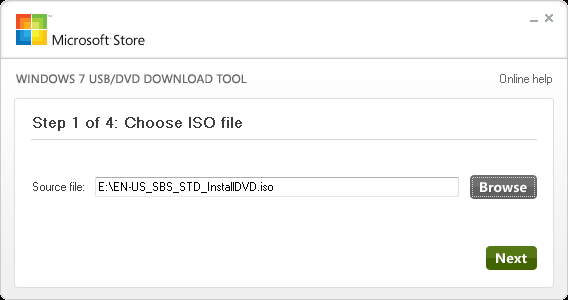
5. Select….. the ISO file that you wish to copy to the USB
6. Select…. Next.

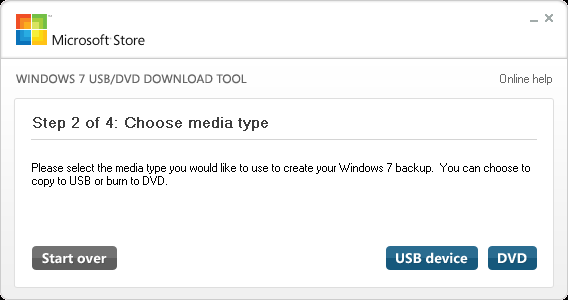
7. Choose…. the type of media you to burn the ISO file to
8. Select…. USB device below.

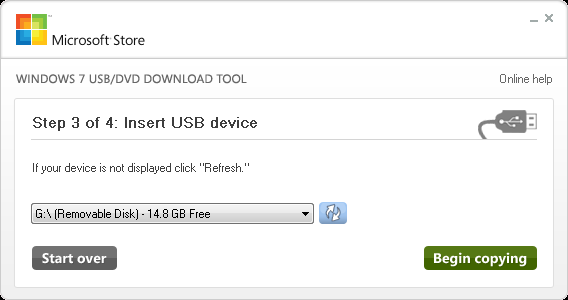
9. Verify that your USB drive is showing below. Use the refresh icon to refresh the selection if you had not plugged the USB drive in before you started.
Once you have selected the USB device
10. Select…..Begin Copying to commence the process.

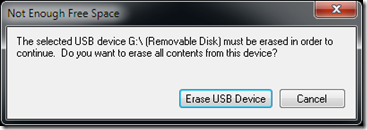
NOTE: If the USB device has data on it, you will receive this message warning you that it will erase the device.
11. Select…. Erase USB Device to continue

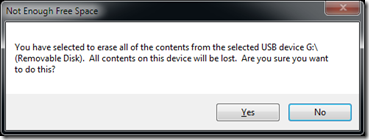
NOTE: Confirm this message to erase the USB.
12. Select…. Yes

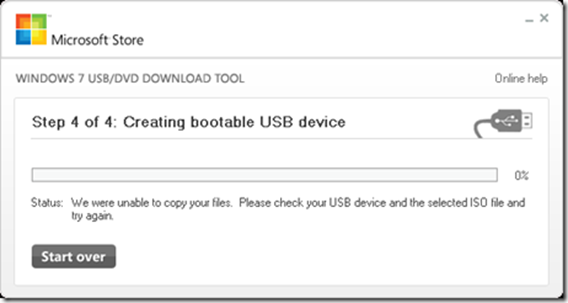
NOTE: The software utility will now format the USB device. But if you didn’t disable your AV software you will get the following error message.
Go Ahead and Disable your AV software and start the procedure again.

13. If you did disable your AV software the software utility will format the disk and start copying the required files to the USB drive from the ISO image.
NOTE: This can take some time depending on the speed of the USB stick and the amount of data to be copied relating to your image.

14. After the copy process is complete, you have a completed bootable USB stick that you can use to build your Operating System.

15. remember the USB stick is NOT a read only copy, you need to remember that other things can be copied to the USB stick.
This can be good thing as you can copy other software on the USB stick that you might use in your fresh installation/build,
NOTE: At this point go and re-enable your AV software.
One of the challenges with new Operating Systems especially SBS Server 2011, which is over 6GB.
Now I mostly install and test Operating System in a virtual environment and don’t needed to burn an ISO to a DVD.
The following steps will allow you to not only create a bootable SBS 2011 USB stick, but you can use the steps with any other bootable ISO to do pretty much the same thing.
1. Firstly you will need the Windows 7 USB/DVD Download Tool.
Download
2. You will a copy of your SBS 2011 ISO image or any other ISO image you would like to make bootable on a USB stick.
Note: Disable your AV software on your desktop machine as this has caused problems with accessing the USB stick during the copy process.
3. Install the Windows 7 USB/DVD download tool on your machine and you should be left with the icon as below
4. Run…..the tool and it will open as per the screen below.
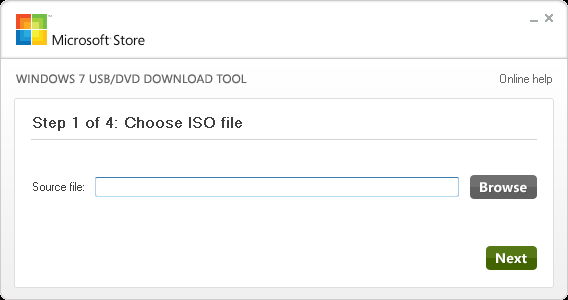
5. Select….. the ISO file that you wish to copy to the USB
6. Select…. Next.
7. Choose…. the type of media you to burn the ISO file to
8. Select…. USB device below.
9. Verify that your USB drive is showing below. Use the refresh icon to refresh the selection if you had not plugged the USB drive in before you started.
Once you have selected the USB device
10. Select…..Begin Copying to commence the process.
NOTE: If the USB device has data on it, you will receive this message warning you that it will erase the device.
11. Select…. Erase USB Device to continue
NOTE: Confirm this message to erase the USB.
12. Select…. Yes
NOTE: The software utility will now format the USB device. But if you didn’t disable your AV software you will get the following error message.
Go Ahead and Disable your AV software and start the procedure again.
13. If you did disable your AV software the software utility will format the disk and start copying the required files to the USB drive from the ISO image.
NOTE: This can take some time depending on the speed of the USB stick and the amount of data to be copied relating to your image.
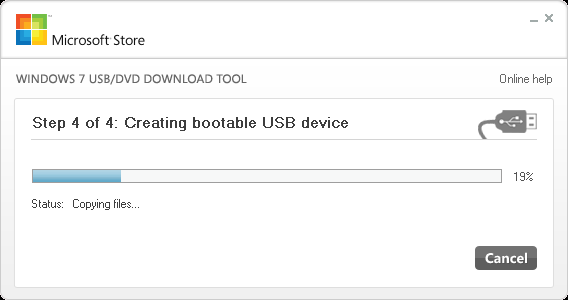
14. After the copy process is complete, you have a completed bootable USB stick that you can use to build your Operating System.
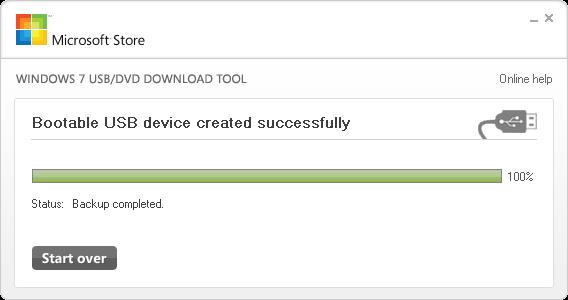
15. remember the USB stick is NOT a read only copy, you need to remember that other things can be copied to the USB stick.
This can be good thing as you can copy other software on the USB stick that you might use in your fresh installation/build,
NOTE: At this point go and re-enable your AV software.
Subscribe to:
Posts (Atom)